No fax machine
Send documents without finding or maintaining physical fax equipment.
Fax from your phone
Send documents by fax directly from your smartphone with Faxer. Upload the file you need, enter the recipient’s fax number and send without looking for a fax machine or using a landline.
Whether you use an iPhone or Android device, Faxer gives you a simple way to fax from your mobile phone wherever you have internet access.

What users say
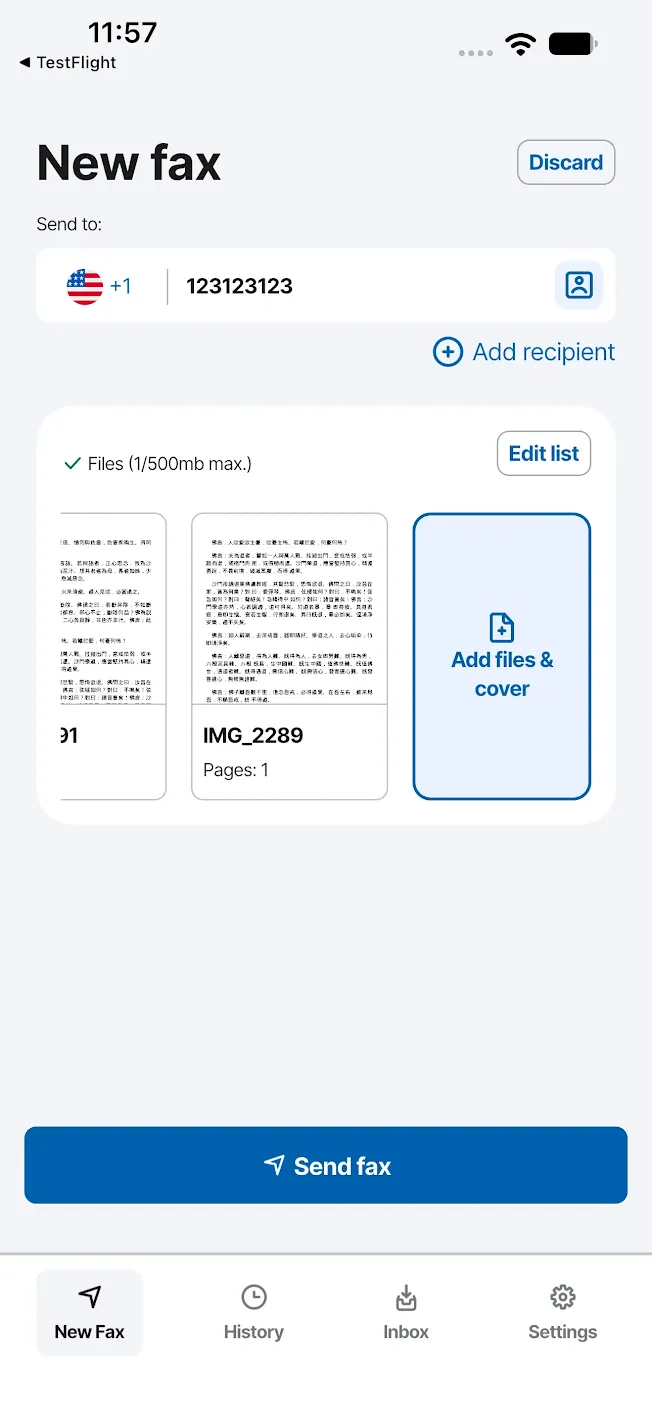
Your iPhone can handle the whole fax process without connecting to a physical fax machine.
With Faxer, you can select the document you want to send from your phone, add the recipient’s fax number and submit the fax directly from your mobile device.
It is a practical option when a business, healthcare provider, government office or other organization still asks you to send paperwork by fax.
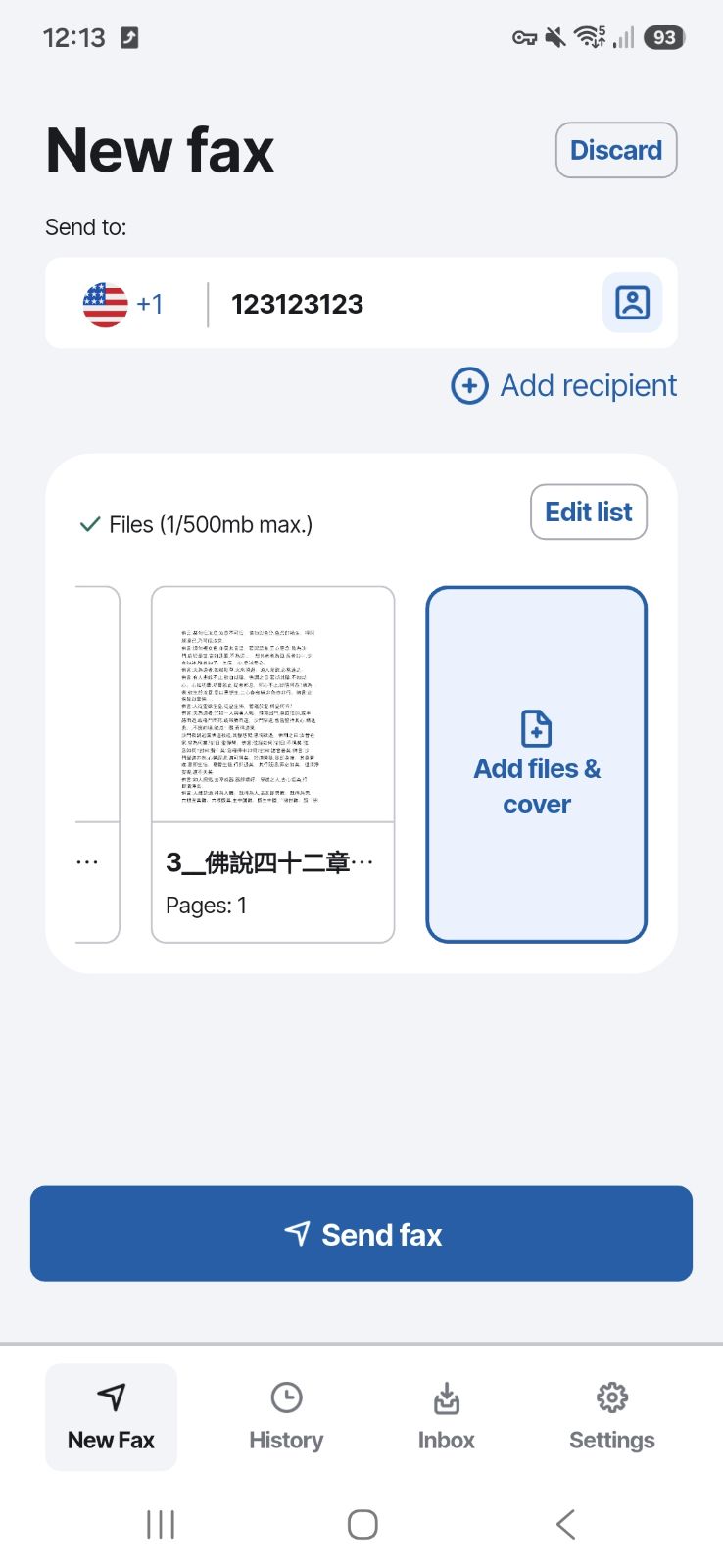
Android users can also send a fax from mobile without a traditional fax machine.
Add your document from your phone, enter the destination fax number and send it through Faxer. There is no need to print the document first or connect your phone to fax hardware.
You can complete the process from the same device you already use to store and manage your files.
A traditional fax setup requires access to a machine, paper and a fax line. Sending from your smartphone removes those extra steps. With Faxer, you can handle the process digitally from the device already in your pocket.
Send documents without finding or maintaining physical fax equipment.
If your document is already digital, add it directly from your phone.
Scan paper pages with your phone and fax them right away. No scanner needed.
Use Faxer from either major mobile platform.
Prepare and send a fax from your phone when you are at home, traveling or working remotely.
Check the status of your transmission after sending.
Sending a fax from your phone takes four steps. Your recipient does not need to use Faxer: the document is sent to the fax number you entered.
Prepare or pick the file on your phone. You can add a cover page at this point if the recipient expects one.
Add the fax number you want to reach. Check it carefully before you continue.
Review the document and the recipient details, then send it. No fax machine or phone line involved.
Follow the status of the fax from your phone, without calling the recipient to confirm.
If the document you need to fax is already on your smartphone, you can add it directly to your fax instead of transferring it to a computer or printing it first. You can also scan a paper page right from your phone.
This makes it easier to send paperwork you receive or store digitally, whether you are at home, at work or away from your computer. Choose your document, add the recipient information and continue with the fax from your phone.
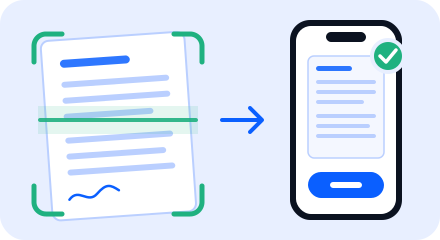
Need to send a paper document? Scan it directly with your phone, add the scan to Faxer and send it as a fax. No scanner or printer needed.
From your phone to any fax number
Add your file, enter the fax number and send with Faxer from iPhone or Android.
You do not need to be next to an office fax machine to send important paperwork.
Faxer lets you fax from your mobile wherever you can use your phone and have an internet connection. This can be useful when you need to send a document while traveling, working remotely or simply away from your computer.
Your phone becomes the device you use to prepare, send and check your fax.
For international destinations, make sure the country and fax number are entered correctly before sending. If you need to fax abroad, see our guide to sending an international fax.
Useful when you are
After sending a fax, you want to know what happened to it.
Faxer lets you follow the status of your fax from your mobile device, so you can check whether the transmission has been completed without calling the recipient just to confirm.
Your fax history keeps the details of your transmissions available in your account, making it easier to refer back to previously sent documents.
This is particularly useful for paperwork where knowing whether the fax was delivered matters.
Faxer is available for both iPhone and Android, so you can manage your fax from the smartphone you already use.
The mobile experience is designed around the main steps needed to send a fax. There is no separate fax machine to configure and no dedicated fax phone line to install.
The main steps, on your phone
Yes. Faxer lets you send a fax from a compatible iPhone or Android device without using a traditional fax machine. Add your document, enter the recipient’s fax number and send from your phone.
Open Faxer on your phone, add the document you want to fax, enter the destination fax number and review the information before sending. You can then follow the fax delivery status from your mobile device.
Yes. You can use Faxer on an iPhone to prepare your document, enter a fax number, send the fax and check its status without connecting to a physical fax machine.
Yes. Faxer is available for Android and lets you send documents to fax numbers directly from your mobile device.
No. You do not need a physical fax machine or dedicated fax line. The fax is prepared and sent using Faxer from your smartphone.
Yes. Documents stored or prepared on your mobile device can be added to your fax, so you do not need to move the file to a desktop computer first.
Yes. You can use Faxer from your phone when you have internet access. For faxes going to another country, check the destination and number format before sending.
If you are looking for a fax from mobile phone free option, check Faxer’s current pricing and introductory offer before sending. The pricing page contains the latest terms so you can see what applies before you start.
After sending, check the fax status in Faxer. This lets you follow the transmission and see its delivery result from your phone.
Skip the fax machine and send your document directly from your smartphone. Add your file, enter the fax number and send with Faxer from iPhone or Android. You can then check the delivery status without leaving your phone.
No fax machine · No dedicated fax line · Delivery status included
Fax from your phone
Send documents by fax directly from your smartphone with Faxer. Upload the file you need, enter the recipient’s fax number and send without looking for a fax machine or using a landline.
Whether you use an iPhone or Android device, Faxer gives you a simple way to fax from your mobile phone wherever you have internet access.
What users say
Your iPhone can handle the whole fax process without connecting to a physical fax machine.
With Faxer, you can select the document you want to send from your phone, add the recipient’s fax number and submit the fax directly from your mobile device.
It is a practical option when a business, healthcare provider, government office or other organization still asks you to send paperwork by fax.
Android users can also send a fax from mobile without a traditional fax machine.
Add your document from your phone, enter the destination fax number and send it through Faxer. There is no need to print the document first or connect your phone to fax hardware.
You can complete the process from the same device you already use to store and manage your files.
A traditional fax setup requires access to a machine, paper and a fax line. Sending from your smartphone removes those extra steps. With Faxer, you can handle the process digitally from the device already in your pocket.
Send documents without finding or maintaining physical fax equipment.
If your document is already digital, add it directly from your phone.
Scan paper pages with your phone and fax them right away. No scanner needed.
Use Faxer from either major mobile platform.
Prepare and send a fax from your phone when you are at home, traveling or working remotely.
Check the status of your transmission after sending.
Sending a fax from your phone takes four steps. Your recipient does not need to use Faxer: the document is sent to the fax number you entered.
Prepare or pick the file on your phone. You can add a cover page at this point if the recipient expects one.
Add the fax number you want to reach. Check it carefully before you continue.
Review the document and the recipient details, then send it. No fax machine or phone line involved.
Follow the status of the fax from your phone, without calling the recipient to confirm.
If the document you need to fax is already on your smartphone, you can add it directly to your fax instead of transferring it to a computer or printing it first. You can also scan a paper page right from your phone.
This makes it easier to send paperwork you receive or store digitally, whether you are at home, at work or away from your computer. Choose your document, add the recipient information and continue with the fax from your phone.
Need to send a paper document? Scan it directly with your phone, add the scan to Faxer and send it as a fax. No scanner or printer needed.
From your phone to any fax number
Add your file, enter the fax number and send with Faxer from iPhone or Android.
You do not need to be next to an office fax machine to send important paperwork.
Faxer lets you fax from your mobile wherever you can use your phone and have an internet connection. This can be useful when you need to send a document while traveling, working remotely or simply away from your computer.
Your phone becomes the device you use to prepare, send and check your fax.
For international destinations, make sure the country and fax number are entered correctly before sending. If you need to fax abroad, see our guide to sending an international fax.
Useful when you are
After sending a fax, you want to know what happened to it.
Faxer lets you follow the status of your fax from your mobile device, so you can check whether the transmission has been completed without calling the recipient just to confirm.
Your fax history keeps the details of your transmissions available in your account, making it easier to refer back to previously sent documents.
This is particularly useful for paperwork where knowing whether the fax was delivered matters.
Faxer is available for both iPhone and Android, so you can manage your fax from the smartphone you already use.
The mobile experience is designed around the main steps needed to send a fax. There is no separate fax machine to configure and no dedicated fax phone line to install.
The main steps, on your phone
Yes. Faxer lets you send a fax from a compatible iPhone or Android device without using a traditional fax machine. Add your document, enter the recipient’s fax number and send from your phone.
Open Faxer on your phone, add the document you want to fax, enter the destination fax number and review the information before sending. You can then follow the fax delivery status from your mobile device.
Yes. You can use Faxer on an iPhone to prepare your document, enter a fax number, send the fax and check its status without connecting to a physical fax machine.
Yes. Faxer is available for Android and lets you send documents to fax numbers directly from your mobile device.
No. You do not need a physical fax machine or dedicated fax line. The fax is prepared and sent using Faxer from your smartphone.
Yes. Documents stored or prepared on your mobile device can be added to your fax, so you do not need to move the file to a desktop computer first.
Yes. You can use Faxer from your phone when you have internet access. For faxes going to another country, check the destination and number format before sending.
If you are looking for a fax from mobile phone free option, check Faxer’s current pricing and introductory offer before sending. The pricing page contains the latest terms so you can see what applies before you start.
After sending, check the fax status in Faxer. This lets you follow the transmission and see its delivery result from your phone.
Skip the fax machine and send your document directly from your smartphone. Add your file, enter the fax number and send with Faxer from iPhone or Android. You can then check the delivery status without leaving your phone.
No fax machine · No dedicated fax line · Delivery status included